1. Getting started
Create your account
- Click Start free trial at the top of any page.
- Enter your portfolio or company name, your name, email and a password (at least 10 characters).
- Tick to agree to the Terms and Conditions and click Start free trial. Your 14-day trial starts straight away – no card needed.
Signing in
Go to Sign in, enter your email and password. Tick Keep me signed in on your own devices. Forgotten your password? Click Forgot password? and we'll email you a link to choose a new one (see section 12).
Finding your way around
| Menu | What it's for |
|---|---|
| Dashboard | Key figures, everything coming up, missing required compliance and your lettings. |
| Properties | All properties; click one to see everything about it. |
| Tenancies | All tenancies, with filters. |
| Mortgages | All mortgages, sorted by when the rate ends, with totals. |
| Compliance | Every certificate, licence and policy, sorted by expiry. |
| Settings | Alerts, required compliance (Enforce), team members and your password. |
| Plan | Your trial or subscription and property allowance. |
| Help | Opens this guide. |
Colour coding
Every date is shown with a coloured label:
Red overdue, or due within 7 days Amber due in 8–60 days Green more than 60 days away
Suggested order for setting up
- Check your alert email and alert points in Settings.
- Choose your required certificates in Settings → Enforce.
- Add each property.
- On each property page, add its certificates, mortgage and current tenancy.
- Add portfolio-wide records such as Rent Smart Wales registration from the Compliance page.
- Send yourself a test alert from Settings.
2. The dashboard
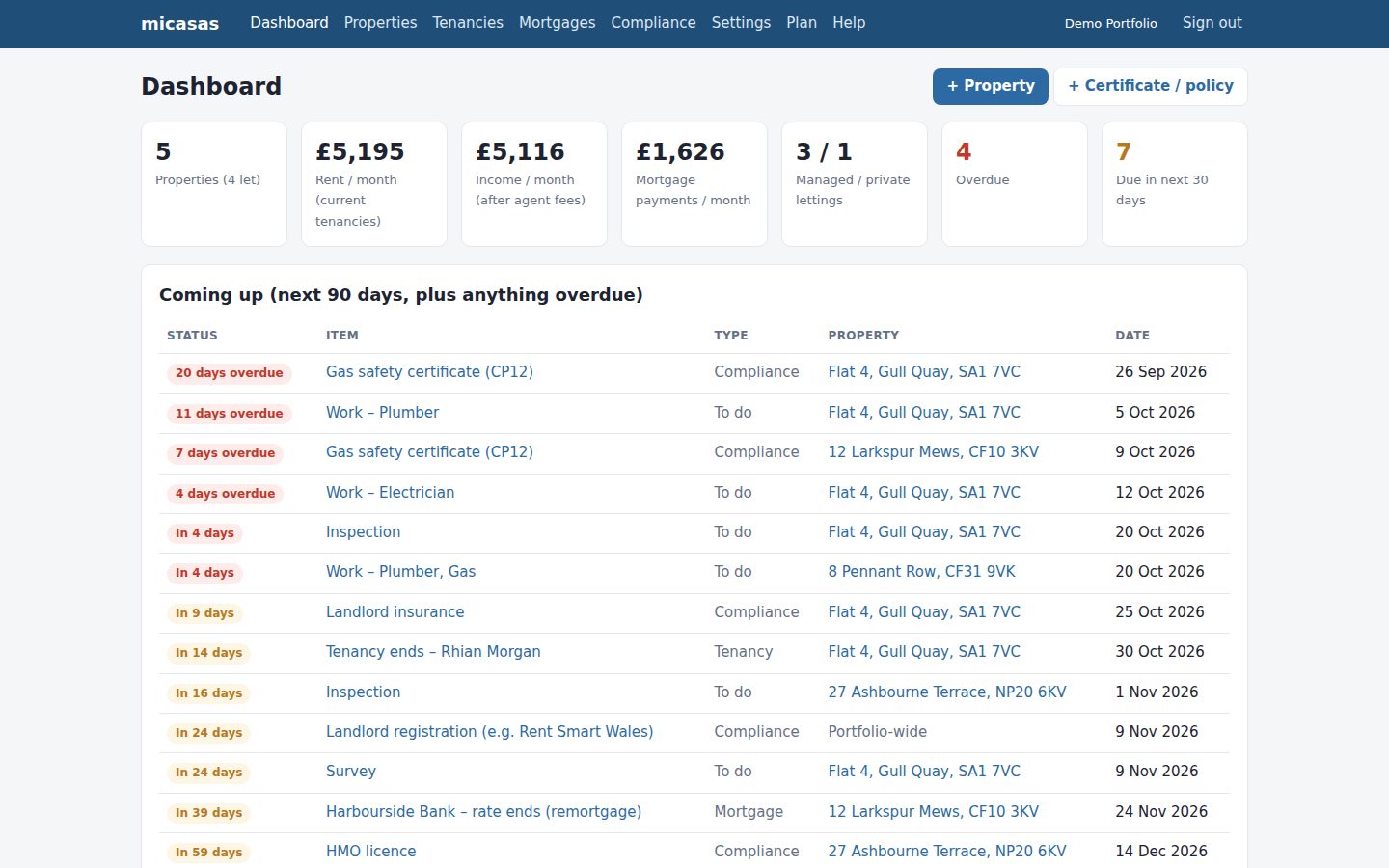
Key figures
- Properties – all properties except sold ones, with how many are let.
- Rent / month – rent from current tenancies (weekly rents converted to monthly).
- Income / month – rent after agent fees.
- Mortgage payments / month – total of all mortgage payments.
- Managed / private – how many current lettings are with an agent vs self-managed.
- Overdue and Due in next 30 days.
Missing required compliance
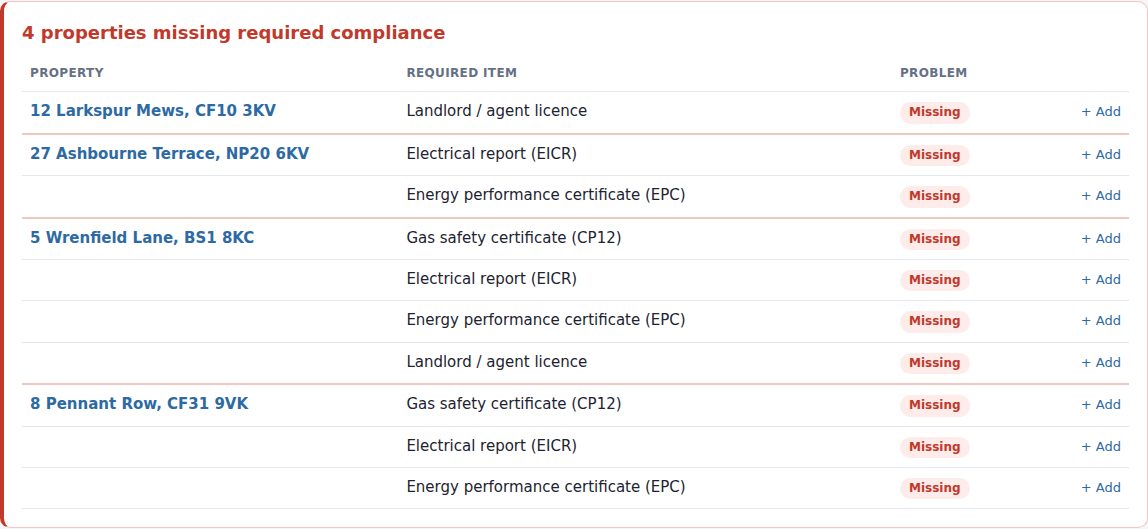
If you've chosen required certificates (section 5), any property missing one is listed with a red Missing or Details missing tag. Click + Add to add it with the type and property already filled in.
Coming up
Everything due in the next 90 days and anything overdue, soonest first – certificates, mortgage rate and term ends, tenancy end dates and scheduled to-dos. Click any item to open it.
Lettings
Each current tenancy with its letting type, agent details (click to call or email), contract, rent, fee and income. A red Missing – upload label means a managed letting has no agent contract on file.
3. Properties
Adding a property
- Click Properties → + Add property.
- Enter the address. Address line 1, town and postcode are required.
- Country is detected from the postcode (e.g. CF, SA, NP, LD, LL are Wales). For properties near the border, choose the country yourself.
- Choose the type (house, flat, HMO, commercial, other) and status (let, vacant, refurb, sold), then add the council, bedrooms, your reference and purchase details if you like.
- Click Save.
Your plan includes up to 10 properties. Properties marked Sold don't count towards this.
The property page
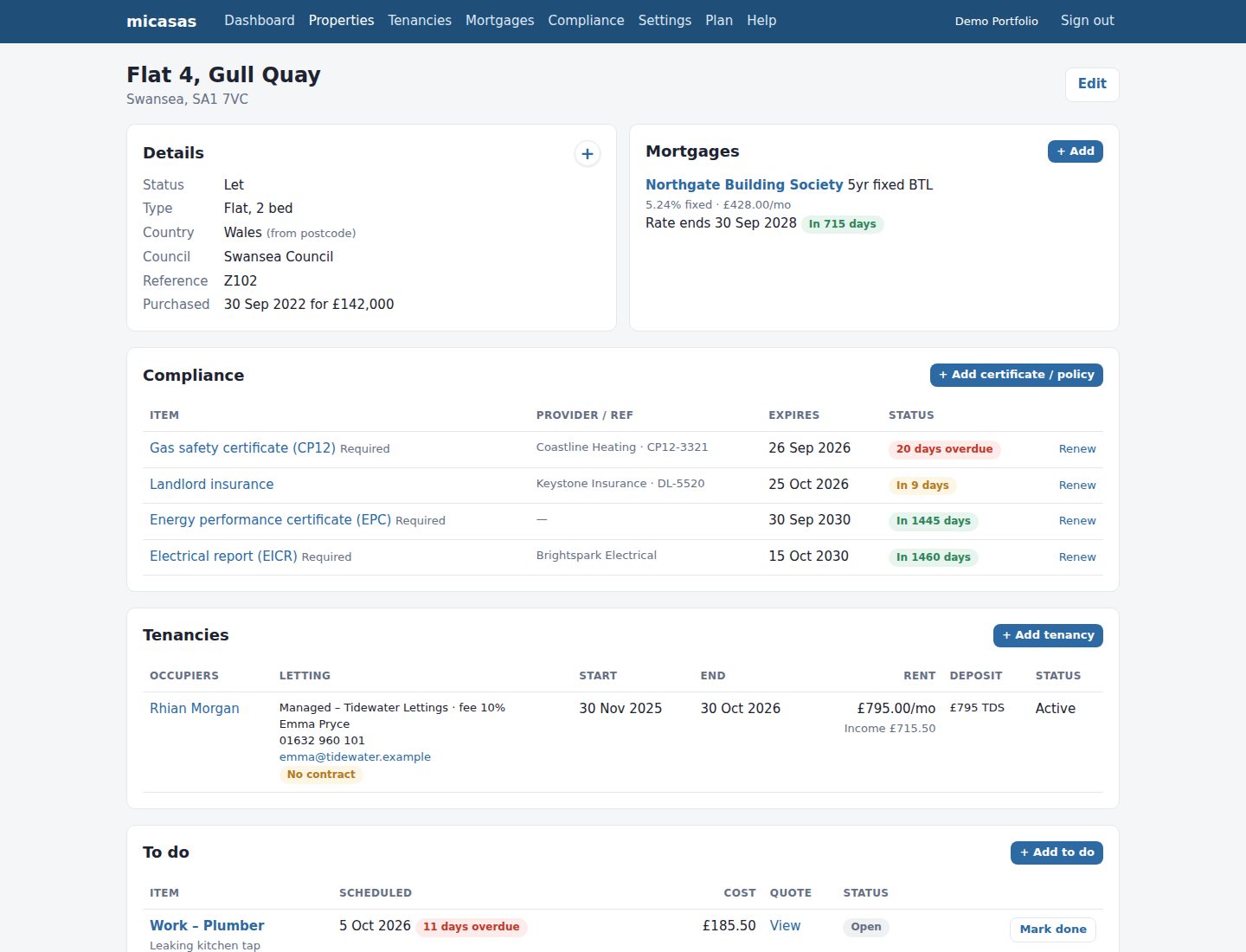
- Details – click Edit to change them.
- Photo – click the round + in the top-right corner of Details to add a photo (on a phone you can take one there and then). It fades in behind the right-hand side of the panel. + replaces it and × removes it.
- Mortgages, Compliance, Tenancies and To do – each with its own add button.
Archiving
Set the status to Sold to keep a property visible but out of your totals, or click Edit → Archive property to hide it completely (records are kept).
4. Compliance records
Adding a certificate, licence or policy
- On the property page click + Add certificate / policy (or use the Compliance page).
- Choose the type. Leave Property blank for portfolio-wide items such as Rent Smart Wales registration.
- Enter the issued date – the usual expiry is filled in for you. Check it matches the document.
- Add the provider (engineer, insurer, council) and reference, attach the document and click Save.
| Type | Suggested validity |
|---|---|
| Gas safety certificate (CP12), insurance (buildings, landlord, rent guarantee), fire risk assessment, smoke/CO alarm check, PAT testing | 12 months |
| Legionella risk assessment | 2 years |
| EICR, HMO licence, additional/selective licence, landlord registration and licence | 5 years |
| EPC | 10 years |
Always enter an expiry date – records without one can't trigger alerts.
Renewing
When the new certificate arrives, click Renew next to the old one. A form opens pre-filled; update the dates, attach the new document and save. The old record is archived so your history is kept and its alerts stop.
5. Required compliance (Enforce)
Tell micasas which records every property must have, and it will flag anything missing.
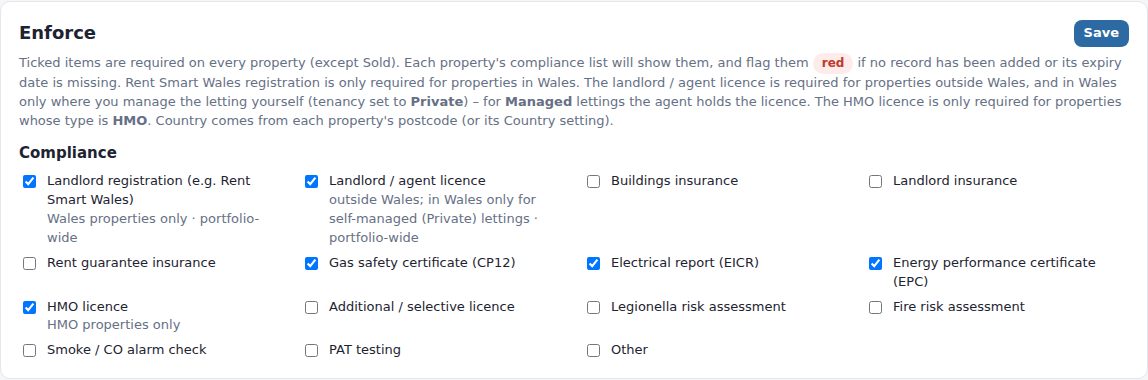
- Go to Settings → Enforce (account owners only).
- Tick each required item – for example gas safety, EICR and EPC – and click Save.
Each property's compliance list then shows required items, with red Missing rows for anything not yet added and Details missing where a record has no expiry date. Affected properties show a red dot on the Properties page and appear on the dashboard.
Automatic rules
- Rent Smart Wales registration – only required for properties in Wales.
- Landlord / agent licence – required for properties outside Wales; in Wales only where the current tenancy is let Privately (if an agent manages it, the agent holds the licence).
- HMO licence – only required for properties whose type is HMO.
- Properties marked Sold are never flagged.
6. Tenancies & agents
Adding a tenancy
- On the property page click + Add tenancy.
- Enter the contract holder(s) and their contact details, the contract type (Welsh standard periodic or fixed-term, English AST, or other) and the status.
- Enter the start date and, for a fixed term or once notice is given, the end date.
- Choose the Letting type – Private or Managed (see below).
- Enter the rent (per month or week) and the deposit amount, scheme, reference and protection date. Click Save.
Managed lettings, agent fee and income
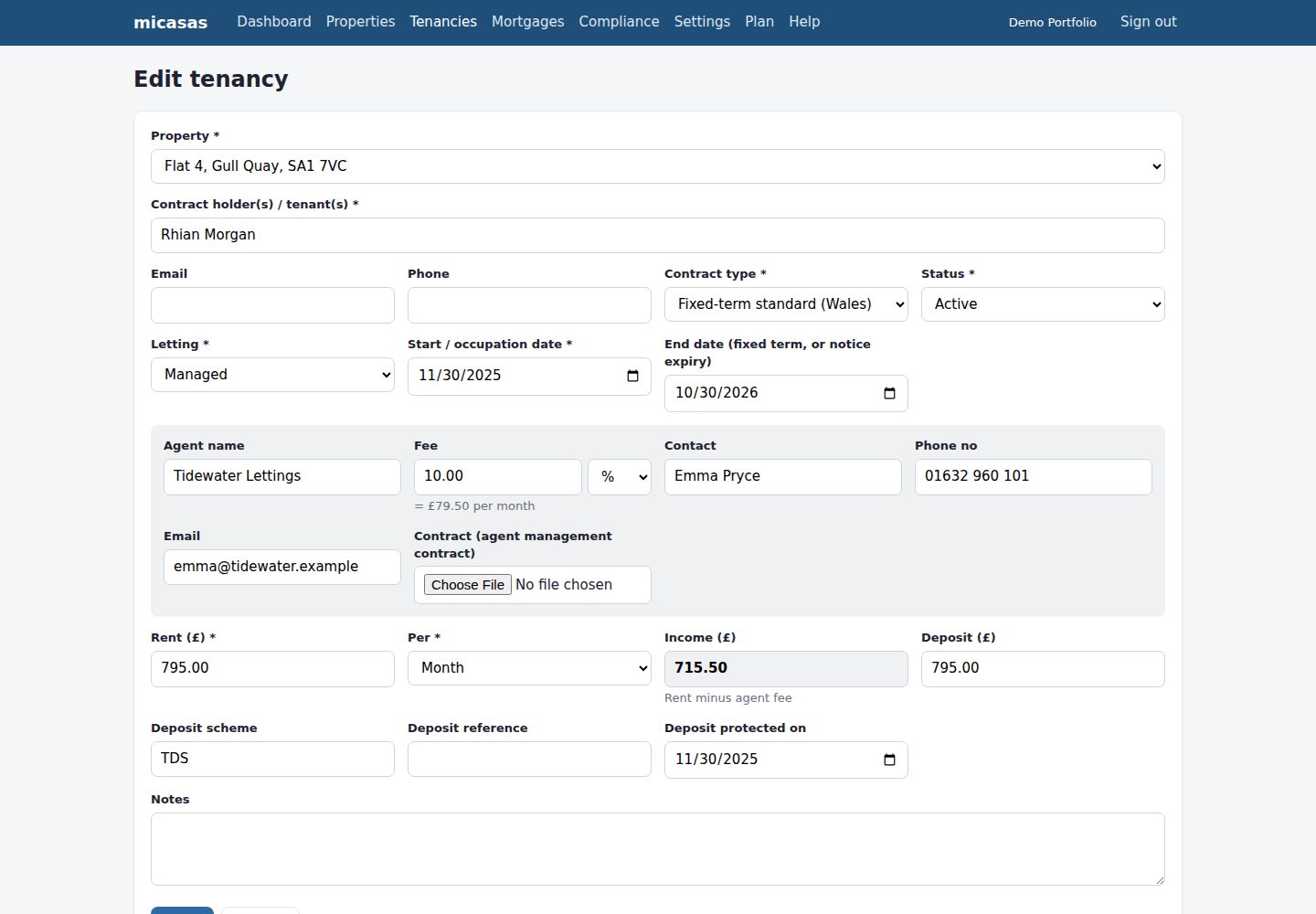
Choose Managed and a panel opens for the agent's name (required), fee, contact, phone, email and the management contract (upload).
- Enter the fee as a percentage (%) of the rent, or a fixed amount (£) per rent payment.
- Income (next to Rent) updates as you type: rent minus the fee.
Switching a tenancy back to Private removes the agent details, fee and uploaded contract. Download the contract first if you want to keep it.
Ending a tenancy
When notice is served, set the status to Notice given and enter the end date – you'll be alerted as it approaches. When the occupiers have left, set it to Ended. Only use Delete for mistakes.
7. Mortgages
- On the property page click + Add in the Mortgages panel.
- Enter the lender, product, balance, rate and rate type.
- Enter the fixed / deal end date – this is the date you'll be reminded about so you can remortgage in time – and optionally the term end and monthly payment.
Please don't store full mortgage account numbers.
8. To-dos & renovation spend
Track work, inspections, surveys and visits for each property – and what renovations and repairs cost you.
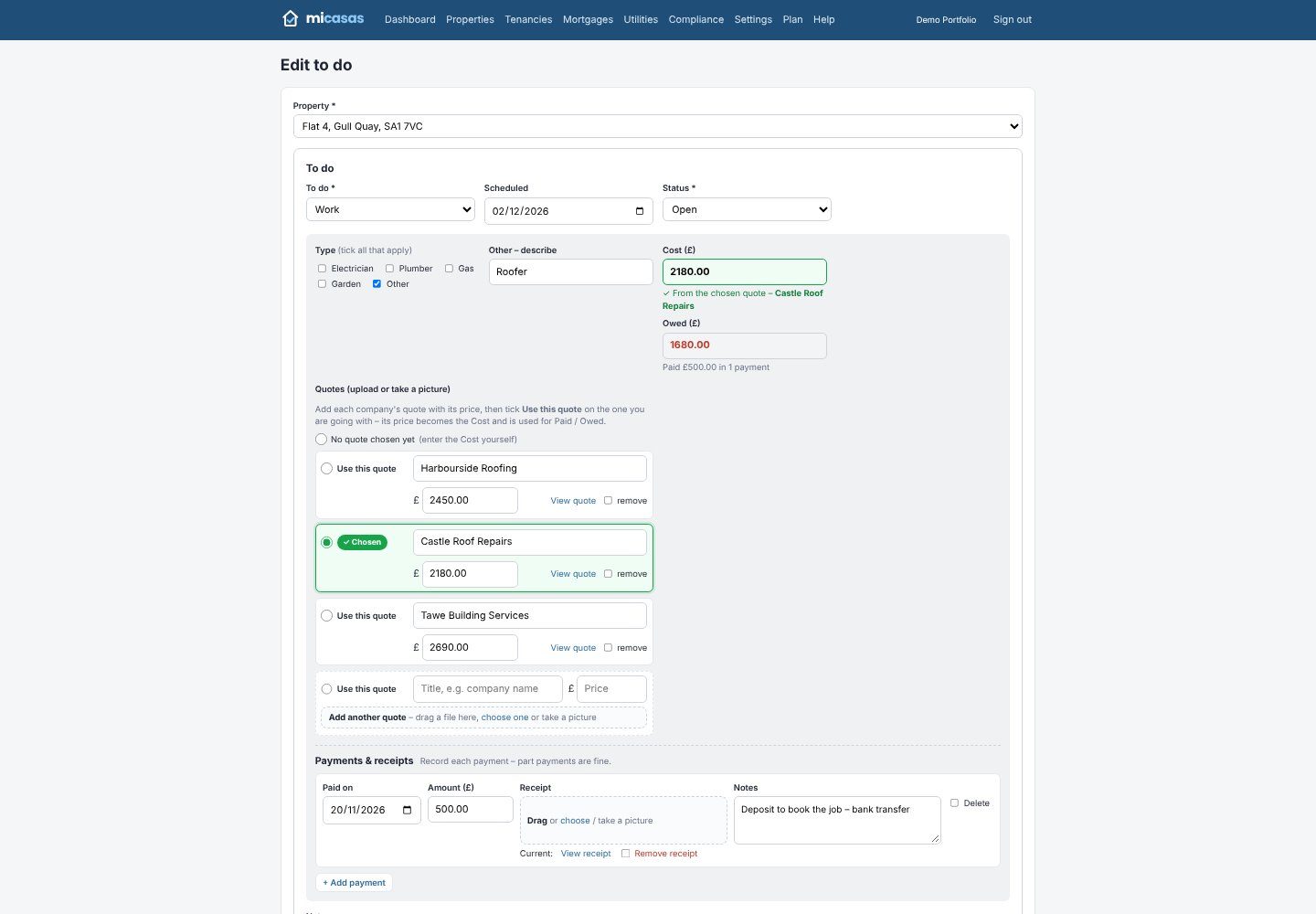
- On the property page click + Add to do.
- Choose Work, Inspection, Survey or Visit, and set the scheduled date and status.
- For Work, tick one or more types (electrician, plumber, gas, garden, other – describe it), enter the cost and attach the quote. On a phone you can take a photo of the quote.
- Click + Add another to do to add more items, or ✕ Remove to drop one. Then click Save once to save them all.
Tracking renovation spend
- Compare quotes: add a quote from each company with its name and price. Tick Use this quote on the one you're going with – it's highlighted green and its price becomes the Cost. Choose No quote chosen yet to enter the Cost yourself.
- Record payments: under Payments & receipts click + Add payment for each deposit or part payment, with the date, amount, receipt and any notes. Owed updates as you type. To delete just a receipt, tick Remove receipt.
- Other costs: choose Other / expense for costs that aren't a job – purchase price, stamp duty, solicitor's fees, surveys – with invoices, payments and receipts too.
Open to-dos with a scheduled date appear on the dashboard and in alerts. Click Mark done when finished – if money is still owed, the item stays highlighted and appears on the dashboard until it's paid. The To do panel totals open and total costs, paid and owed for the property. Tick Hide completed items to tidy the list.
9. Alerts
Every morning at 07:30 (UK time) micasas checks all your dates and sends one email listing anything that has reached an alert point.
- Alert points – by default 60, 30, 14, 7 and 0 days before each date; change them in Settings. Overdue items are reminded every 7 days.
- Never twice – each item is only sent once per alert point.
- Who gets them – the alert email in Settings, or every account owner if it's blank.
- SMS – tick Send SMS alerts and enter a UK mobile for a short text summary too.
- Test – Settings → Send test alert now; the Recent alerts table shows what was sent.
Alerts stop once you deal with the item: renew the certificate, update the mortgage date, end the tenancy, or mark the to-do done.
10. Team members & roles
| Can… | Owner | Manager | Viewer |
|---|---|---|---|
| View everything and download documents | ✓ | ✓ | ✓ |
| Add, edit and delete records | ✓ | ✓ | – |
| Change alert settings and required compliance | ✓ | – | – |
| Add and remove team members | ✓ | – | – |
To add someone, an owner goes to Settings → Team, enters their name, email, role and a temporary password, and shares the password securely. Click Remove to take someone off the account.
11. Your plan
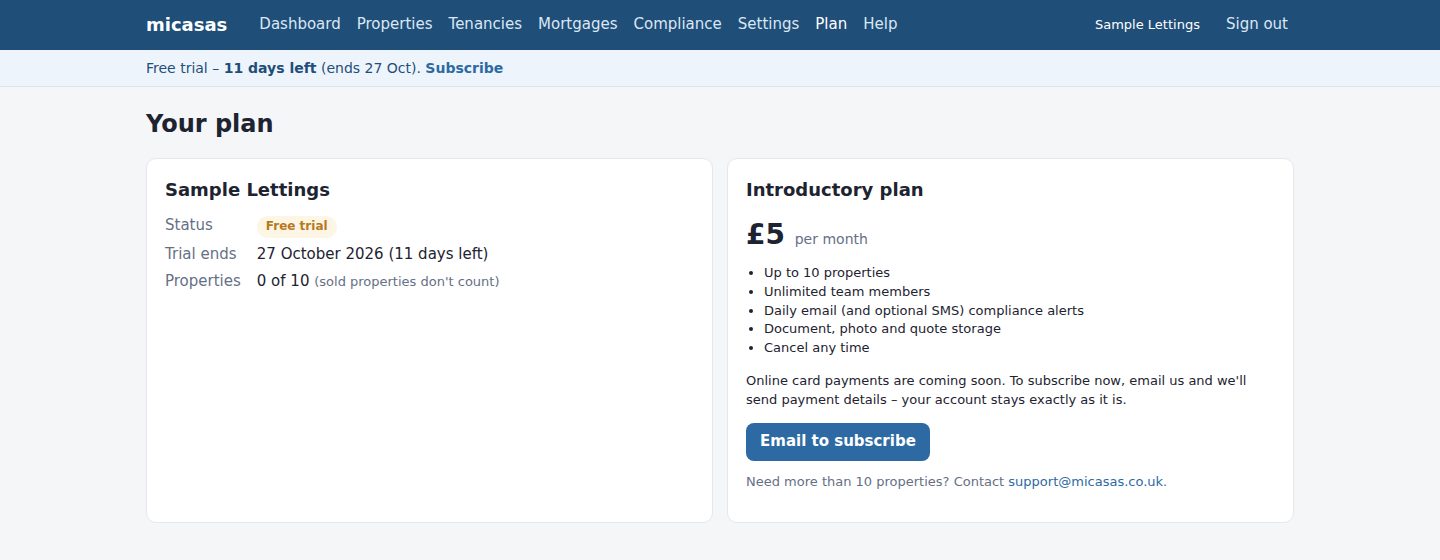
- Free trial – 14 days of full access. A banner shows the days left, and we'll email you 3 days before it ends.
- Subscribing – introductory £5 a month for up to 10 properties. Click Plan → Email to subscribe and we'll send payment details. Online card payments are coming soon.
- If your trial or subscription ends – nothing is deleted. You can still sign in, view and download everything, but you can't add or change records and alerts are paused until you subscribe.
- More properties? Email support@micasas.co.uk.
12. Password & security
- Change your password – Settings → Change your password.
- Forgotten it? – on the sign-in page click Forgot password?, enter your email and follow the link we send (it lasts 60 minutes; check spam).
- Use a unique password, add each person as their own team member rather than sharing a login, and give people the lowest role they need.
13. Questions & troubleshooting
Why isn't something on the dashboard?
The coming-up list only shows the next 90 days and anything overdue. Check the item has a date; tenancies must be Active or Notice given, and to-dos must be Open.
I didn't get an alert email
Check spam, then Settings → Recent alerts. Use Send test alert now. An item already alerted at that point won't be sent again until the next point.
A required item still shows as missing
Make sure the record is for that property (or portfolio-wide for Rent Smart Wales), is the right type, and has an expiry date.
I can't add or change anything
Your trial or subscription may have ended (a red banner will say so) – see Your plan. Otherwise your role may be Viewer; ask an owner.
14. Glossary
| Term | Meaning |
|---|---|
| Account | Your landlord business in micasas, with its own properties, team and settings. |
| Contract holder | The Renting Homes (Wales) Act term for a tenant. |
| CP12 | The annual gas safety record. |
| EICR | Electrical Installation Condition Report. |
| EPC | Energy Performance Certificate. |
| HMO | House in Multiple Occupation. |
| Managed letting | A tenancy looked after by a letting or managing agent. |
| Portfolio-wide | A record that covers the whole account rather than one property. |
| Rent Smart Wales | The Welsh Government scheme for registering landlords and licensing those who let and manage. |
micasas is a record-keeping and reminder tool and doesn't give legal advice. Need help? Email support@micasas.co.uk.